LinqTV Blog
Add Playout Capabilities to Your Websites Using LinqTV Playout APIs
Integrate LinqTV Playout
Here is what Playout API Website Integration means in practice, why it matters for developer tooling, and how to put it to work without rebuilding your stack from scratch.
Understanding Playout API Website Integration
Playout API Website Integration lets engineering teams integrate streaming into their own products and workflows. In streaming terms, developer tooling sits at the center of how audiences discover, watch and pay for your content.
What happens under the hood
Authentication uses tokens, integrations are tested in staging, and prebuilt connectors shorten the path to common CMS, CRM and payment systems.
What a strong platform delivers
- Webhooks for uploads, payments and lifecycle events
- Token-based auth and staging environments
- Player SDKs for web, iOS, Android and TV with DRM hooks
- Prebuilt connectors for CMS, CRM and payment systems
- REST APIs for content, users, entitlements and reporting
Best practices
- Use webhooks instead of polling to keep systems in sync efficiently
- Always test integrations in staging before go-live
- Scope API tokens narrowly and rotate them regularly
How LinqTV helps
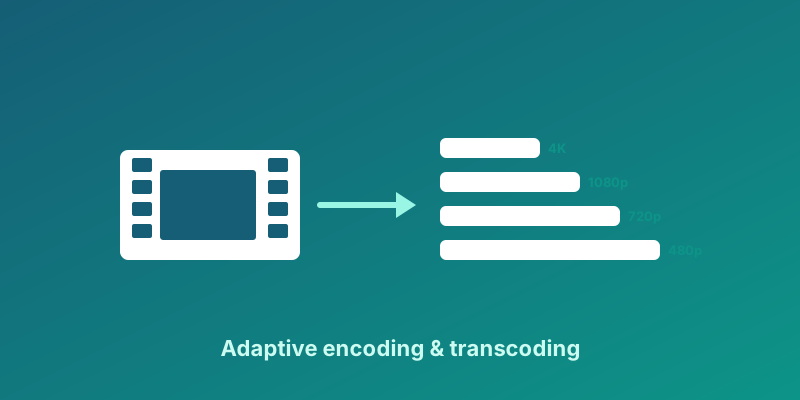
LinqTV transcodes your sources into adaptive H.264, HEVC and AV1 ladders and packages HLS and DASH automatically, with per-title encoding to control cost.
Because every module shares identity, billing, metadata and analytics, you avoid brittle point-to-point integrations and ship new features faster.
Questions teams ask
How quickly can we launch?
Most teams pilot in a matter of weeks by importing a representative content set, configuring a monetization model, and testing playback on their top devices, then expand from there.
How do I keep my systems in sync?
Webhooks notify your backend of events such as new content or completed payments in real time, avoiding fragile polling.
Can we keep our existing tools?
APIs, webhooks and prebuilt connectors integrate with common CMS, CRM and payment systems, so you extend your stack instead of replacing it.
Where to go from here
Ready to put developer tooling to work? Explore LinqTV One for an end-to-end streaming platform, or talk to our team for a tailored walkthrough of how Playout API Website Integration fits your roadmap. The links below are a good place to start.
Explore more on LinqTV